LG WEBOS TVS
Control LG webOS TVs
Pair an LG webOS connection and add it to a room. Select the TV on the remote to use physical navigation, power, volume and color buttons immediately.
Physical buttons
Default behavior. An active activity can override individual mappings.
| Button | What it does |
|---|---|
| D-pad and OK | Navigate the TV interface and confirm the selected item. |
| Back | Send Back to the TV without leaving its Couch screen. |
| Home and Menu | Open LG Home or send the TV menu command. |
| Volume + / − and Mute | Adjust TV volume and toggle mute. |
| Channel + / − | Send channel-up or channel-down to the TV. |
| Red, green, yellow and blue | Send the corresponding color button; the TV or active app decides its action. |
| Keypad Power | Send the device’s assigned IR power toggle, or use its connection-level power settings. |
| Side Power | Sleep or wake Couch without controlling the TV. |
| Hold Back | Hold for about 0.6 seconds to return to Couch’s previous device list. |
Pair and add the TV
Add an LG webOS connection in the web UI, enter its address and approve the pairing request on the TV. Then add its device to a room. Each TV keeps a separate connection and pairing.
Choose a source or app
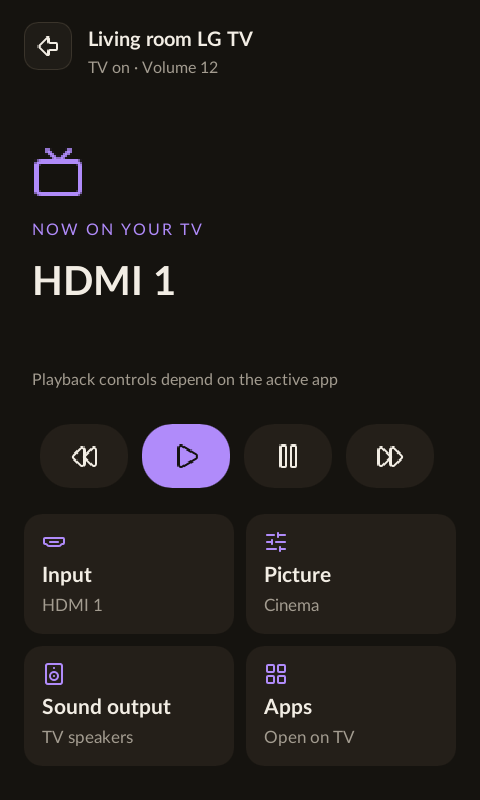
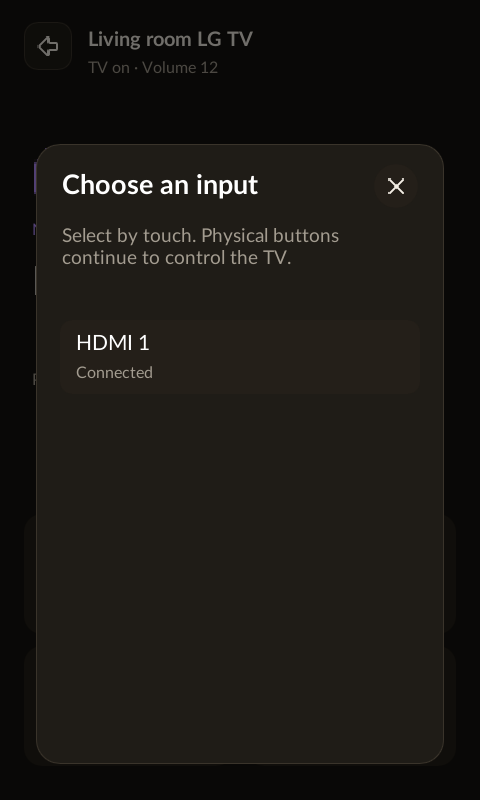
Touch Input to choose a TV input, or Apps to choose from the TV’s app list. Open a tray by touch and use its close button or tap outside to dismiss it. Physical Back continues to control the TV.
Picture and sound controls
Picture can open the TV settings app when the TV exposes it; Couch does not promise direct picture-mode switching. Sound output offers TV speakers and HDMI ARC/eARC where supported by the television.
Playback limits
Play, pause, rewind and fast-forward depend on the active TV app. The source label is not a full now-playing feed.
Power over IR
In Rooms & devices, add IR commands directly to your TV and assign its power toggle. The keypad power button sends that code; the side power button sleeps or wakes Couch. Discrete on/off need separate codes. Existing connection-level power settings remain supported; select Network there if you prefer webOS power-off and Wake-on-LAN. Assigned per-device IR functions take precedence, and failed IR sends never fall back to network commands.
Customize an activity
Activity mappings can route volume to your receiver while navigation stays with the TV. Long Back remains reserved for returning to Couch.