ANDROID & GOOGLE TV
Control Android and Google TV
Pair Android TV once in Connections, add it to a room, then select its row and press OK. Navigation and media keys go straight to that TV.
Physical buttons
Default behavior. An active activity can override individual mappings.
| Button | What it does |
|---|---|
| D-pad and OK | Navigate the TV and select its focused item. |
| Back | Send Back to Android TV. A short press stays in the device screen. |
| Home and Menu | Open the TV home screen or send its menu key. |
| Volume + / − and Mute | Adjust TV volume or toggle mute. What changes depends on the TV’s audio setup. |
| Channel + / − | Send channel-up or channel-down to the active TV app. |
| Power | Send power-off when the TV reports it is on, or power-on when it reports standby. If its state is unknown, Couch asks you to retry rather than guessing. |
| Hold Back | Hold for about 0.6 seconds to return to your previous Couch device list. |
| Color buttons | Not supported by this Android TV client yet; use another supported activity mapping if needed. |
Pair the TV
In the web UI, add an Android / Google TV connection. Find TVs on this network, choose yours, request the on-screen code, and verify it. Then add the connection as a device in a room. The TV must have Android TV Remote Service enabled; ADB is not required.
Add favorite apps
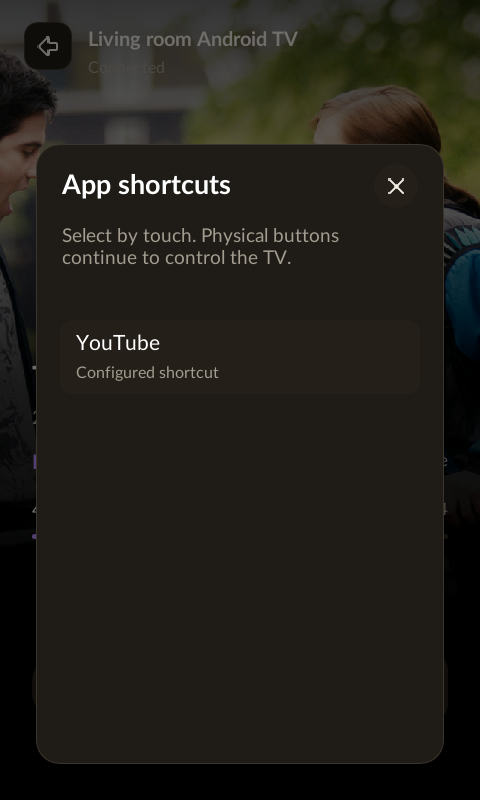
In that connection’s settings, add an app name and its launch link under App shortcuts. Reorder the entries and select Save app shortcuts. Open Apps on the remote to launch one. This is a configured list, not installed-app discovery: a link only opens if an installed TV app handles it.
Use touch for playback
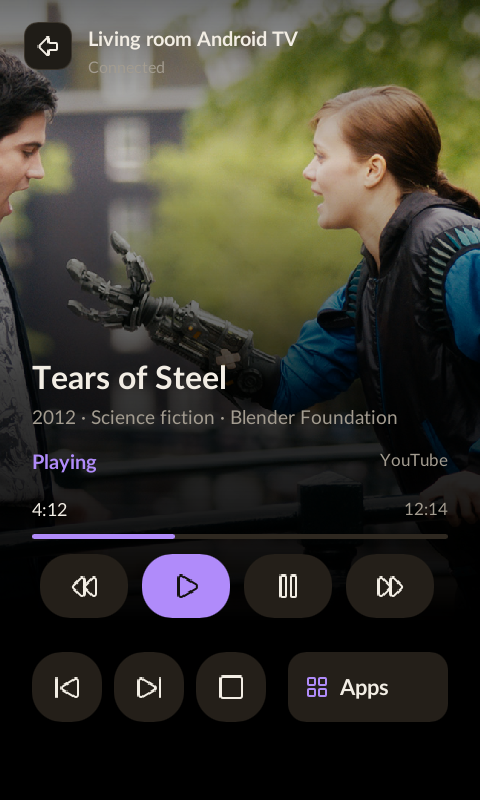
Play, pause, rewind, fast-forward, previous, next and stop use Android media keys. Support depends on the active app. Couch reads standard Cast media status when available to show the title, app, playback state and artwork. The timeline shows elapsed time and duration; it is read-only. Live streams show Live, and unknown durations are left unset. Some apps expose limited metadata or none, so artwork and playback details may be absent. Chapter discovery is not supported.
When a connection drops
Check that the TV is awake and reachable, then use Reconnect. Stale navigation presses are discarded instead of replayed after a slow reconnect. In an activity, custom button mappings can send individual keys to other devices.