ROOMS & NAVIGATION
Find a room. Choose a device.
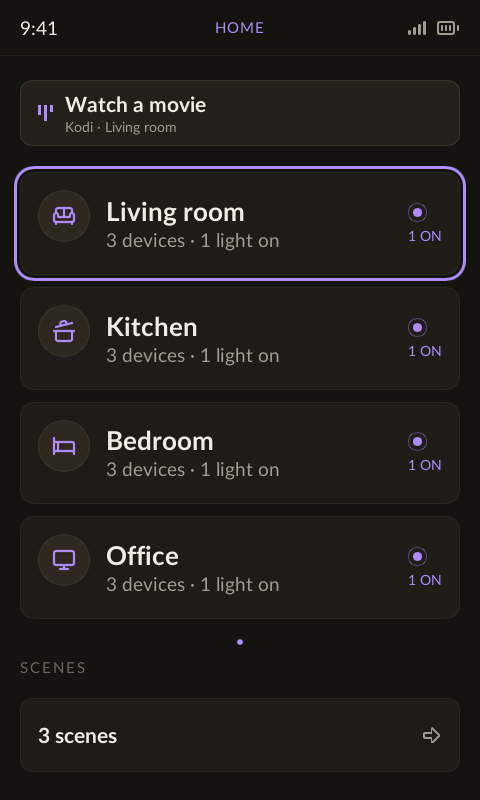
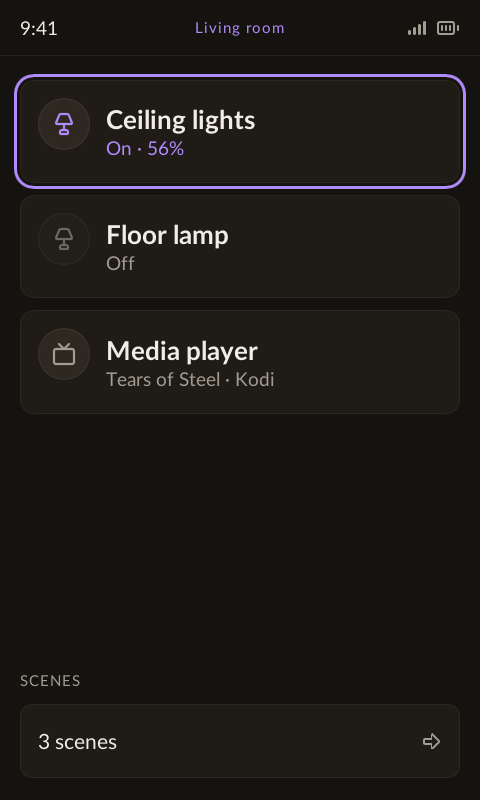
The home screen collects your rooms, activities and scenes in one area. Open a room to see its devices in a single list.
Physical buttons
Default behavior. An active activity can override individual mappings.
| Button | What it does |
|---|---|
| D-pad ↑ / ↓ | Move the highlight through the list. The list scrolls to keep the selection visible. |
| OK | Open the highlighted room. Inside a room, activate the selected device: toggle a light or open its control screen. |
| Back | Return from the device list to the previous view. |
| Home | Return to Couch home while browsing rooms. Inside a device control screen, Home can control that device instead. |
| Hold Menu | On the home room list, hold Menu to open the remote’s settings. |
| Hold Back | From Kodi, Android TV, Apple TV or webOS controls, hold for about 0.6 seconds to return to Couch. This gesture is reserved even when activity buttons are customized. |
Touch and physical buttons
On the remote, tap a list row to highlight it, then press OK to activate it. The landing-page preview also opens rows with a tap so it works without a physical OK button.
Organize it in the web UI
Add a connection first, then add its devices to rooms. Areas choose which rooms and activities appear together on the home screen. A room can contain devices from several connections.
Try the live home-screen preview →