LIGHTS & SCENES
Dim a light without opening another screen.
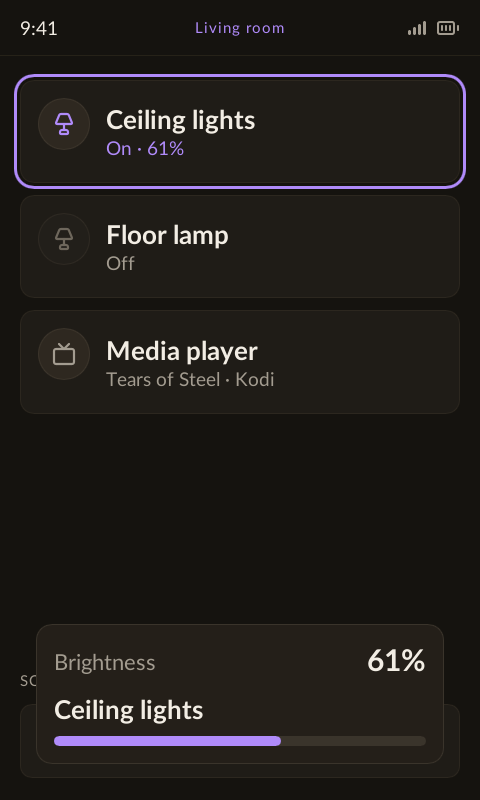
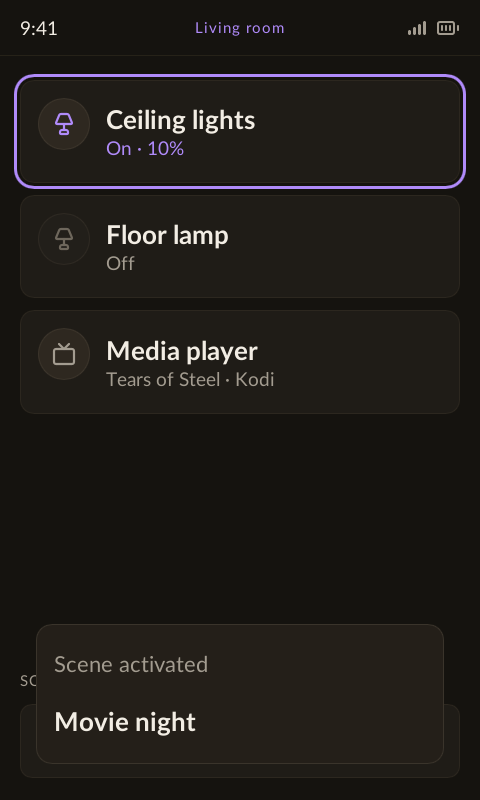
Highlight a light or a Hue room in the device list. Its physical controls are ready immediately; brightness and scene changes appear in a temporary card.
Physical buttons
Default behavior. An active activity can override individual mappings.
| Button | What it does |
|---|---|
| D-pad ↑ / ↓ | Highlight the light or Hue room you want to control. |
| OK | Toggle the selected light or Hue room on or off. |
| Volume + / − | Adjust brightness in five-percentage-point steps when the selected item supports dimming. |
| Channel + / − | Cycle forward or backward through this room’s configured scenes. |
| Back | Leave the room. Brightness and scene feedback clear when you navigate away. |
Scenes belong to rooms
In the web UI, edit a room to add Hue lights, Hue rooms and scenes from its bridge. The Scenes button at the bottom of the device list opens that room’s scene choices. Select a scene and press OK to recall it.
Read the status at a glance
Light icons brighten when on and fade when off. Room icons reflect the reported state of their devices. A Hue room is a bridge group, so its brightness control affects the lights in that group.
These are the default list controls. Activity button mappings can route volume and other keys to a different device while that activity is active.
Try the live home-screen preview →