HOME ASSISTANT
Blinds & thermostats
Add a Home Assistant connection, then choose its blinds and thermostats from Rooms & devices. Couch uses the capabilities each entity reports.
Physical buttons
| Button | What it does |
|---|---|
| D-pad | Highlight a blind or thermostat in the room device list. |
| OK on a blind | Open a closed blind or close an open blind. Unknown states are not guessed. |
| Volume + / − on a blind | Increase or decrease its open position. Position control must be supported by the entity. |
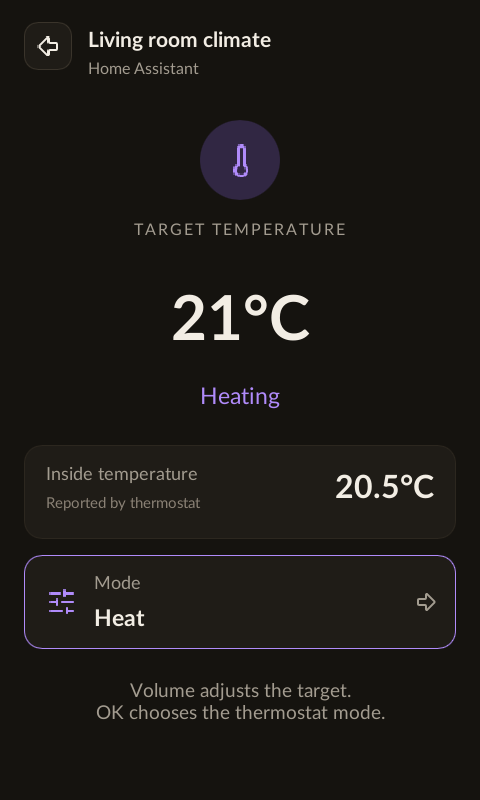
| OK on a thermostat | Open its dedicated temperature view. |
| Volume + / − on a thermostat | Raise or lower the target by the thermostat’s reported step, within its limits. Works from its highlighted row and its dedicated view. |
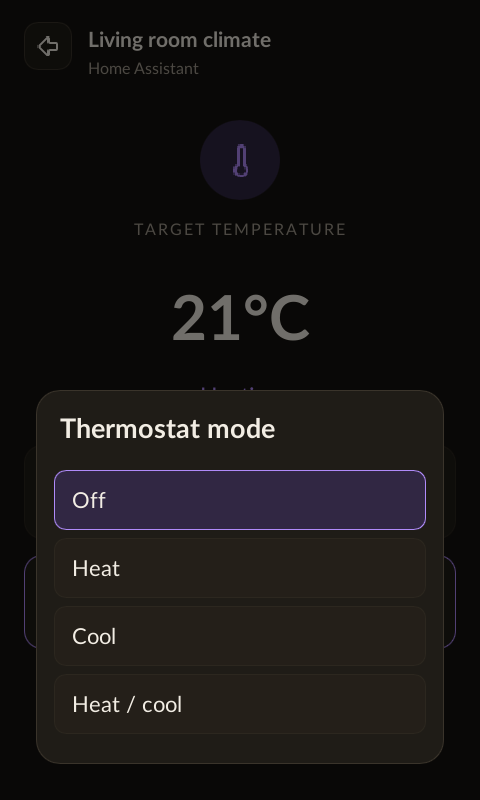
| OK inside the thermostat | Open the mode tray. Use Up / Down to choose, then OK to apply. |
| Back | Dismiss the mode tray first; press again to return to the device list. |
| Home | Leave the thermostat view and return home. |
Add devices to a room
In Connections, save your Home Assistant server URL and long-lived access token. Open a room in Rooms & devices, select that connection, then choose Lights, Blinds or Thermostats from Device type. Add each entity to the room where you want it to appear.
Blind position
Home Assistant cover entities use 0% for fully closed and 100% for fully open. A blind without position control still supports open and close when those capabilities are available. The web UI also offers Stop when supported. Tilt controls are not included.
Temperature and modes
Couch displays temperatures in Home Assistant’s configured Celsius or Fahrenheit unit. The large value is your target; Inside temperature is the measured reading. Heating, cooling and idle describe the reported operating state.
For thermostats using a heat/cool range, Volume shifts both targets together while preserving their separation and respecting the limits. Choose a mode before adjusting a thermostat that is off. Available HVAC modes vary by device; Couch does not invent missing controls.
Unavailable devices
An unavailable entity stays visible without pretending it is closed or reporting a made-up temperature. Check its state in Home Assistant and restore its connection before sending a command.