APPLE TV
Control Apple TV
Select a paired Apple TV device and press OK to open its controls. This Rust Companion client is experimental; pairing and behavior still need validation on your Apple TV.
Physical buttons
Default behavior. An activity can override individual mappings.
| Button | What it does |
|---|---|
| D-pad and OK | Navigate Apple TV and select its focused item. |
| Back and Menu | Send Apple TV’s Back/Menu command. Short presses stay in the control screen. |
| Home | Send Home to Apple TV. |
| Volume + / − | Send volume commands; response depends on Apple TV’s audio setup. |
| Channel + / − | Send channel commands where the active app supports them. |
| Power | Request sleep. Couch does not infer Apple TV’s current power state or toggle it blindly. |
| Hold Back | Hold for about 0.6 seconds to return to Couch’s previous device list. |
| Mute and color buttons | Not available through this Companion client. Map another device in an activity if it supplies those functions. |
Pair once in Connections
Add an Apple TV connection in the web UI, find the device and request its on-screen PIN. Discovery supplies the Companion port, which varies by device. Keep Apple TV awake while pairing. An Apple ID password is not required.
Apps and playback
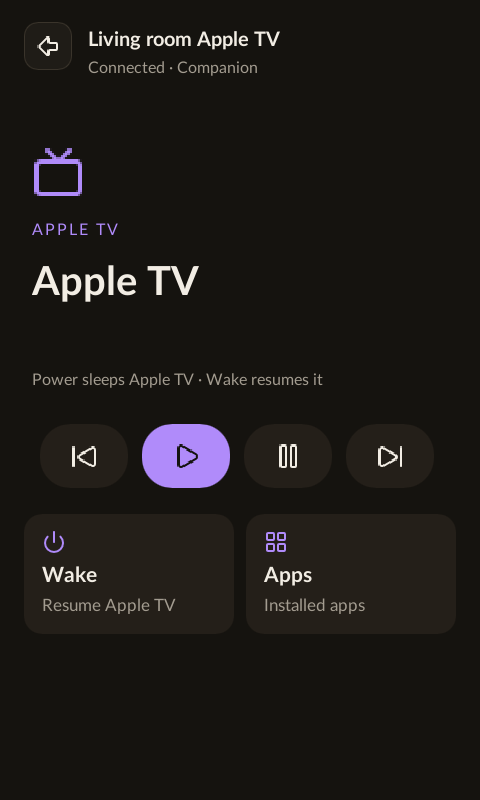
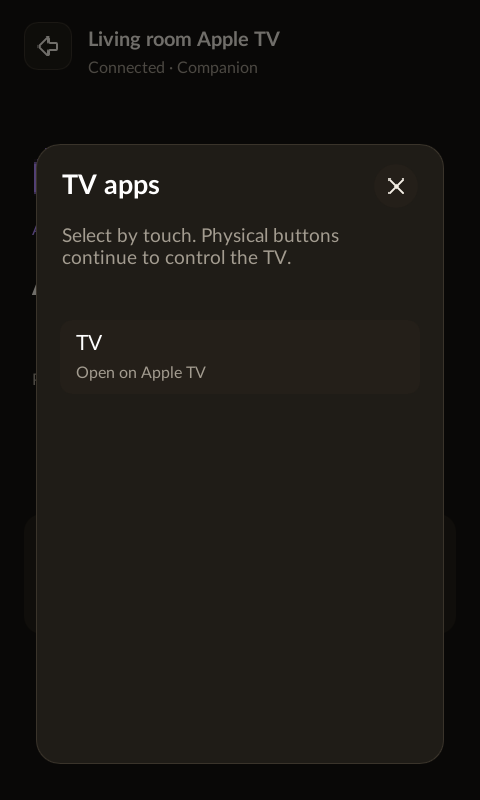
Add the connection as a device in a room, then open it on the remote. Apps displays the catalog reported by the paired Apple TV; tap an entry to launch it. Previous, play, pause and next are available on the screen. Available behavior depends on the active app.
Sleep and wake are separate
The physical Power button requests sleep. Touch Wake to resume Apple TV. A successful command is not a confirmed power-state report. If the connection is unavailable, turn on the device and use Reconnect.
What the screen does not claim
This Companion connection does not yet supply artwork, a timeline or current playback metadata. Seek, stop, mute and color buttons are not exposed. Use an activity to route receiver volume or other supported commands to a different device.